
Shopify order panel
The shopper's Shopify orders next to each conversation in Inclamo Helpdesk: what the panel shows, the order actions and who may take them.
When a shopper writes or calls about an order, your team sees the order next to the conversation and can act on it there, without opening the Shopify admin.
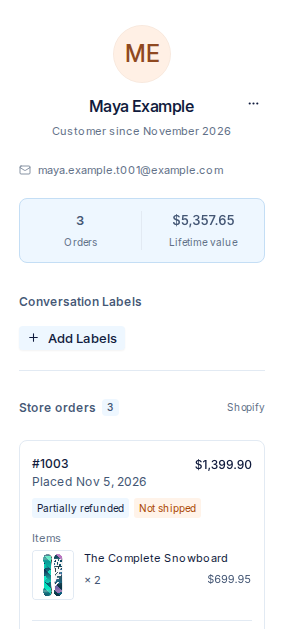
Finding the shopper in your store
The panel looks the conversation’s contact up in your store by email first, then by phone number. It never guesses:
- One customer found — the panel shows them and their orders.
- More than one customer (for example, two customers with the same phone) — the panel lists them and you choose the right one. Your choice is remembered for this contact.
- No customer found, or a contact with neither email nor phone — find the order by its number. You can then keep that order’s customer for the contact.
What the panel shows
For the matched customer: their name, number of orders and total spent, and their most recent orders, newest first, with Load more.
For each order:
- order number, date and total with currency
- payment status and fulfillment status
- the items, with quantity and price
- the shipping address
- each shipment’s carrier, tracking number and tracking link
- refunds already made, and what remains refundable
- a link to the order in your Shopify admin
The panel reads the order from your store when you open the conversation and after every action, so it shows the order as it is now. Order details are not copied into the helpdesk.
The order a conversation is about
Mark one order as the order the conversation is about; change or clear the mark at any time. When the shopper’s first message names one of their own order numbers, that order is marked for you. The marked order’s number, statuses and tracking link are available to replies, macros and automation rules.
Order actions
From the order card:
- Refund all or part of an order — the whole remaining amount, chosen items and quantities, shipping, or a custom amount up to what remains refundable. The confirmation shows the amount and currency, where the money goes, whether items go back into stock and whether the customer is notified.
- Cancel an order — with a reason, and your choice to refund the payment, restock the items and notify the customer. A cancellation cannot be undone.
- Change the address before it ships — for an order with no shipment yet. Once anything has shipped, the action is unavailable with the reason “already shipped”.
- Send a free replacement — a new order with the items of the original one (you can lower quantities or remove items), to the same customer and address, at no charge to the customer, marked as a replacement of the original order.
Every action the store accepted leaves a private note in the conversation — who did what to which order — visible to your team and not to the shopper. Every attempt, accepted or refused, is also kept in the helpdesk’s action record.
When Shopify refuses an action, the panel shows Shopify’s reason. When your store does not answer, the panel says so and offers to try again; it never shows old data as current.
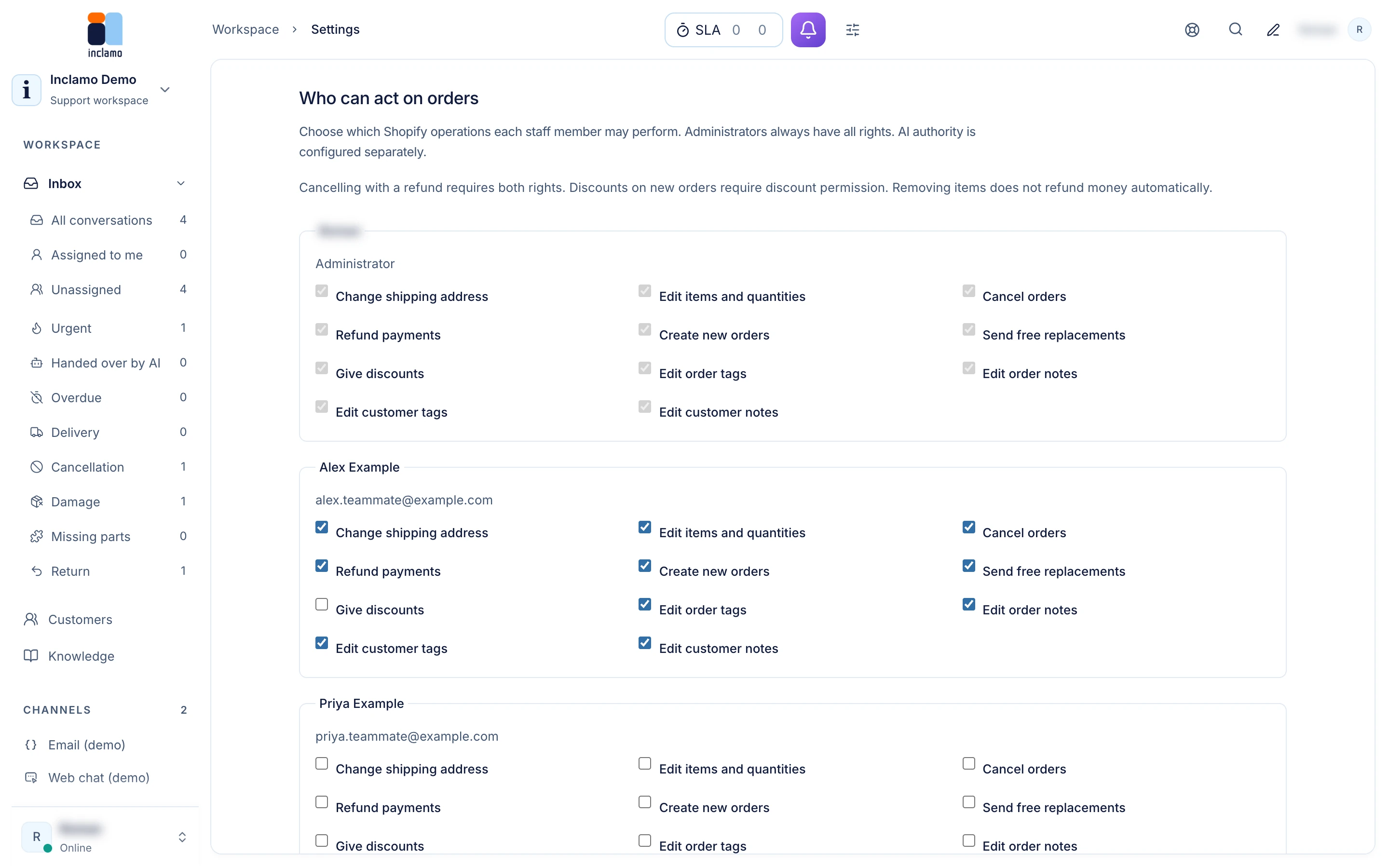
Who can act on orders
- Administrators can always take order actions.
- Teammates can once an administrator allows it in Settings → Order actions (“Who can act on orders”). A new teammate can’t act on orders until then. Without the permission, a teammate still sees every order in full, with each action shown as unavailable and the reason.
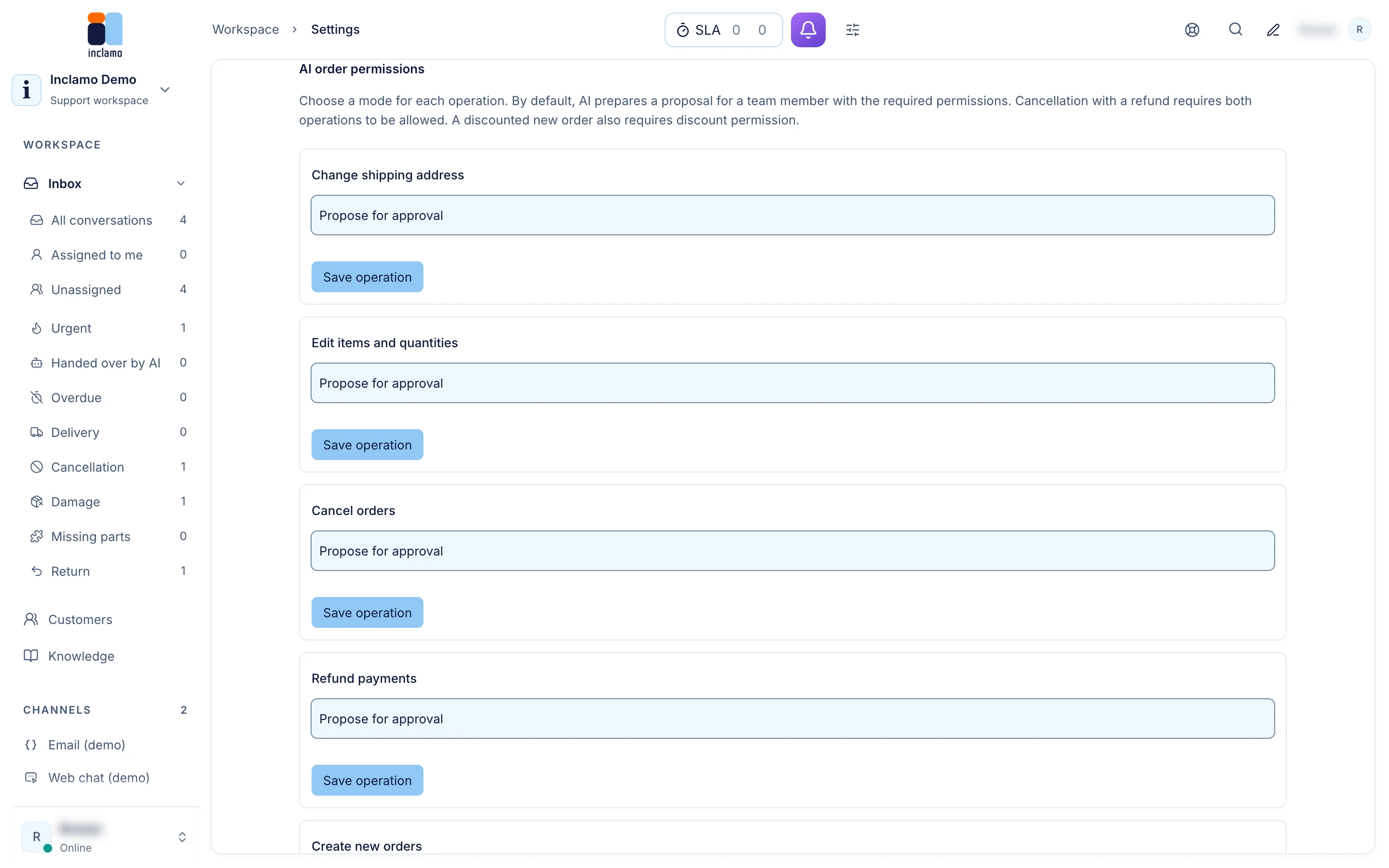
- The AI agent takes only the actions you allow it, in Settings → AI agent under “AI order permissions”. For each operation you choose Forbidden, Propose for approval or Act autonomously; the default is Propose for approval: the agent prepares the action and a teammate with the needed permission approves or rejects it in the conversation. Acting autonomously needs the order states it may act on and an amount limit, works only for a verified customer and stops as soon as your team takes over.
What the store connection must allow
An action appears only when your store’s connection to Inclamo has the Shopify permission it needs; otherwise the panel shows it as unavailable and names the missing permission. When a store does not share customers’ personal data with the connection, the panel finds orders by order number only: names and addresses are unavailable, and the address can’t be changed from the helpdesk.